How to Set Up Parental Controls on a Kindle
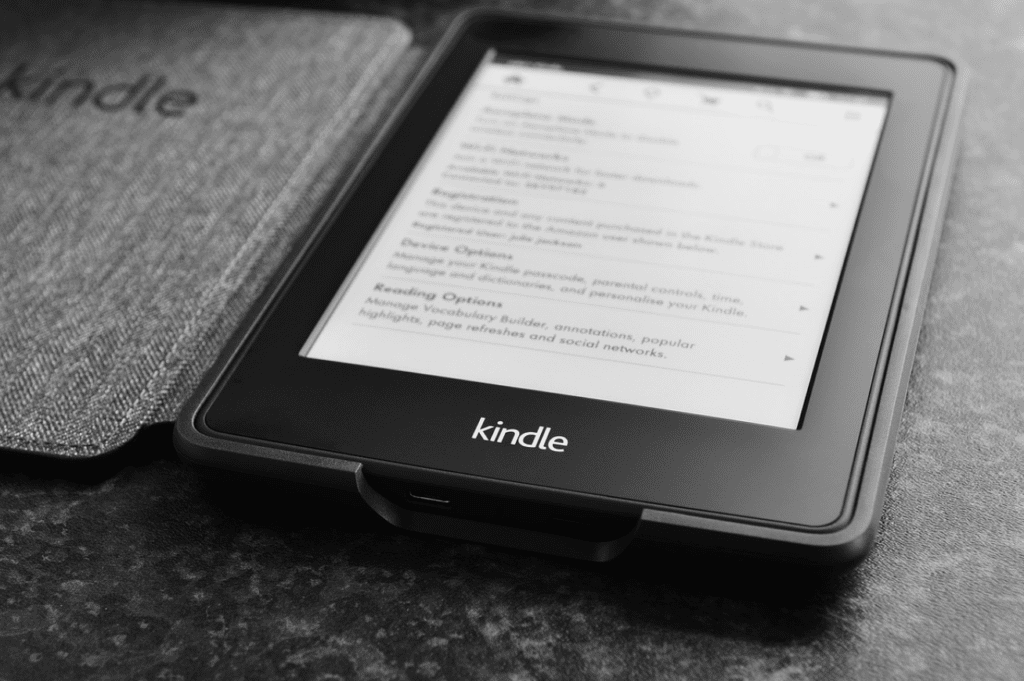
Ah, the Kindle – a modern oasis for bookworms and a godsend for parents who want to keep their kids entertained without handing over a fragile, expensive tablet. But, as with most things in life, there’s a flip side. You don’t want your little ones to get lost in the vast digital library and end up reading content that’s not suitable for their age. So, what do you do? Set up parental controls on their Kindle, of course! In this witty guide, we’ll show you how to create a safe and enjoyable reading experience for your children on their Kindle devices. Buckle up, and let’s get started!
Set the Stage: Add Your Kids to Amazon Household
Before you can even think about setting up parental controls on your Kindle, you need to add your kids to your Amazon Household. This way, you can create a separate account for each child and manage their content and settings accordingly.
How to Create a Child Profile
To set up a child profile, follow these steps:
- Log in to your main Amazon account.
- Go to Your Account > Amazon Household.
- Choose the appropriate age group (Child or Teen), enter the child’s name and date of birth, and click Save.
Pro Tip: A teen account has more freedom, including the ability to shop independently (with your approval, of course). On the other hand, a child account is limited to Amazon Kids and the content you allow on their device.
Manage Access to Content: Customize the Library
With your kids added to your Amazon Household, it’s time to hand-pick the content they can access on their Kindle devices. Here’s how to do it:
The Amazon My Content and Devices Page
- Head over to the Amazon My Content and Devices page.
- Click on the Content tab on the upper left corner.
By default, all content in your library is set to “Off” for a child’s profile. You can enable anything you own, including documents and files.
Granting Access to Books, Apps, and More
To manage access to specific titles, follow these steps:
- Click See Title(s) under Books or any other content category.
- Next to the item you want to manage, click More actions.
- Select Manage Family Library.
- Choose to add or remove the item from your child’s profile.
Remember to ensure that the device is turned on and connected to the internet for these changes to take effect.
Set Up Parental Controls on the Kindle Device
Now that you’ve curated the library for your kids, it’s time to set up parental controls on their Kindle devices.
Configuring Parental Controls on a Kindle Fire
Follow these steps to set up parental controls on a Kindle Fire:
- Go to Settings > Parental Controls and toggle Parental Controls to On. You’ll be prompted to set a password that’s at least four characters long.
- Return to the Settings menu and tap Profiles & Family Library. From there, you can set custom restrictions, such as time limits and library access for each child.
Configuring Parental Controls on a Kindle E-Reader
To set up parental controls on a Kindle e-reader, follow these steps:
- Swipe down from the top of the e-reader and choose All Settings > Parental Controls > Restrictions. This allows you to enable or disable the web browser, store, cloud, and access to the Goodreads social network. You’ll be prompted to set a PIN after you make your choices.
- Press the Back arrow and choose Household and Family Library. Any books you’ve cleared in your Content and Devices page will be available to download.
Keep an Eye on Third-Party Apps and Browsers
While Kindle’s parental controls are a great start, keep in mind that they may not apply to independent browsers like Opera or third-party apps like Overdrive and Libby, which allow borrowing from local libraries. To ensure a safe reading environment for your kids, take a moment to research and configure parental controls on these apps as well.
Troubleshooting: Resetting Kindle Parental Controls
Sometimes, things go awry, and you might need to reset your Kindle’s parental controls. Here’s what to do in such situations:
Resetting Parental Controls on a Kindle Fire Tablet
On a Kindle Fire tablet, after you enter an incorrect password five times, you’ll receive a prompt to reset the password using your Amazon account.
Resetting Parental Controls on a Kindle Paperwhite
On a Paperwhite, the only fix is to factory reset the device. Enter 111222777 as the password, and the device will erase itself. Once it restarts, you can sign back in to your Amazon account and re-download your books.
Turning Off a Kindle Paperwhite
You might be wondering how to turn off a Kindle Paperwhite. Well, the truth is, your Paperwhite never really turns off unless it runs out of battery. It simply puts the display to sleep. To turn off the screen, press the Power button or close the cover of your case.
Explore the World of Free Kindle Books for Kids
Now that you’ve set up parental controls on your kids’ Kindles, why not introduce them to the world of free Kindle books? There are plenty of websites other than Amazon where you can find fantastic Kindle books for kids. You can also upload free books to your Kindle from your computer and handpick the titles you want your kids to read.
Get the Most Out of Your Kindle with Tips and Tricks
As you continue to explore the Kindle ecosystem, you’ll discover that there are numerous Amazon Kindle tips and tricks that can help you get the most out of your device. From customizing your reading experience to managing your content, you’ll find a wealth of information just a few clicks away.
The Importance of Reading for Kids
Reading is an incredible way for kids to learn, explore new worlds, and develop their imagination. By setting up parental controls on their Kindle devices, you’re not only ensuring a safe reading environment but also fostering a lifelong love for books.
Enter to Win a Kindle Paperwhite from Extra TV!
150 Winners | June 8, 2023 | 1 Entry Per Person
Enter now for your chance to win a Kindle Paperwhite from Extra TV! This sleek e-reader features a glare-free screen, adjustable warm light, and weeks-long battery life. With a Kindle Paperwhite, you can take your entire library with you wherever you go.
How to Enter
- Visit the Extra TV website and enter your information.
- You can enter once per person.
- The deadline to enter is June 8, 2023 at 11:59 PM ET.
Prizes
- 150 Kindle Paperwhites (16GB)
Eligibility
- Open to legal residents of the United States (50 states and District of Columbia, but specifically excluding the territory of Puerto Rico) who are aged eighteen (18) and over as of the date of entry.
Enter here: Win a Kindle Paperwhite from Extra TV!
The Final Word
Congratulations! You’ve successfully set up parental controls on your kids’ Kindle devices, and now they can enjoy their reading experience without you having to worry about inappropriate content. So, go ahead and celebrate – you’ve just unlocked the magical world of books for your kids without compromising their safety. Happy reading!
Keep going